
Connect Anaemate to your Outlook Calendar
Follow these steps to connect your Anaemate calendar to Outlook on your iPhone or Android phone.
Before you begin
Make sure you have:
The latest version of the Anaemate app
Your Microsoft or Outlook sign-in details
A few minutes to complete the connection
Step 1: Open Calendar Sync
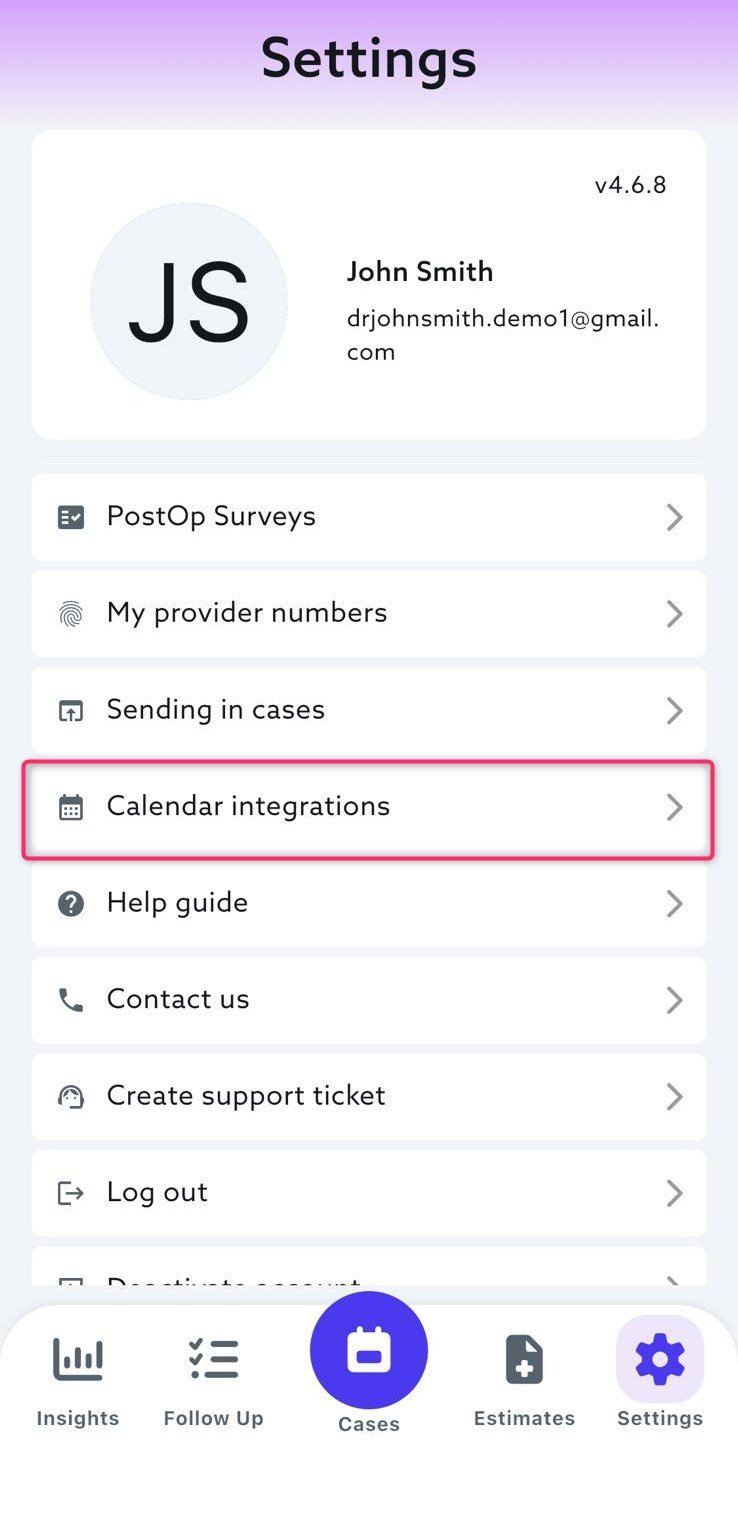
Open the Anaemate app.
Select Settings.
Select Calendar Integrations.
Step 2: Connect Outlook Calendar
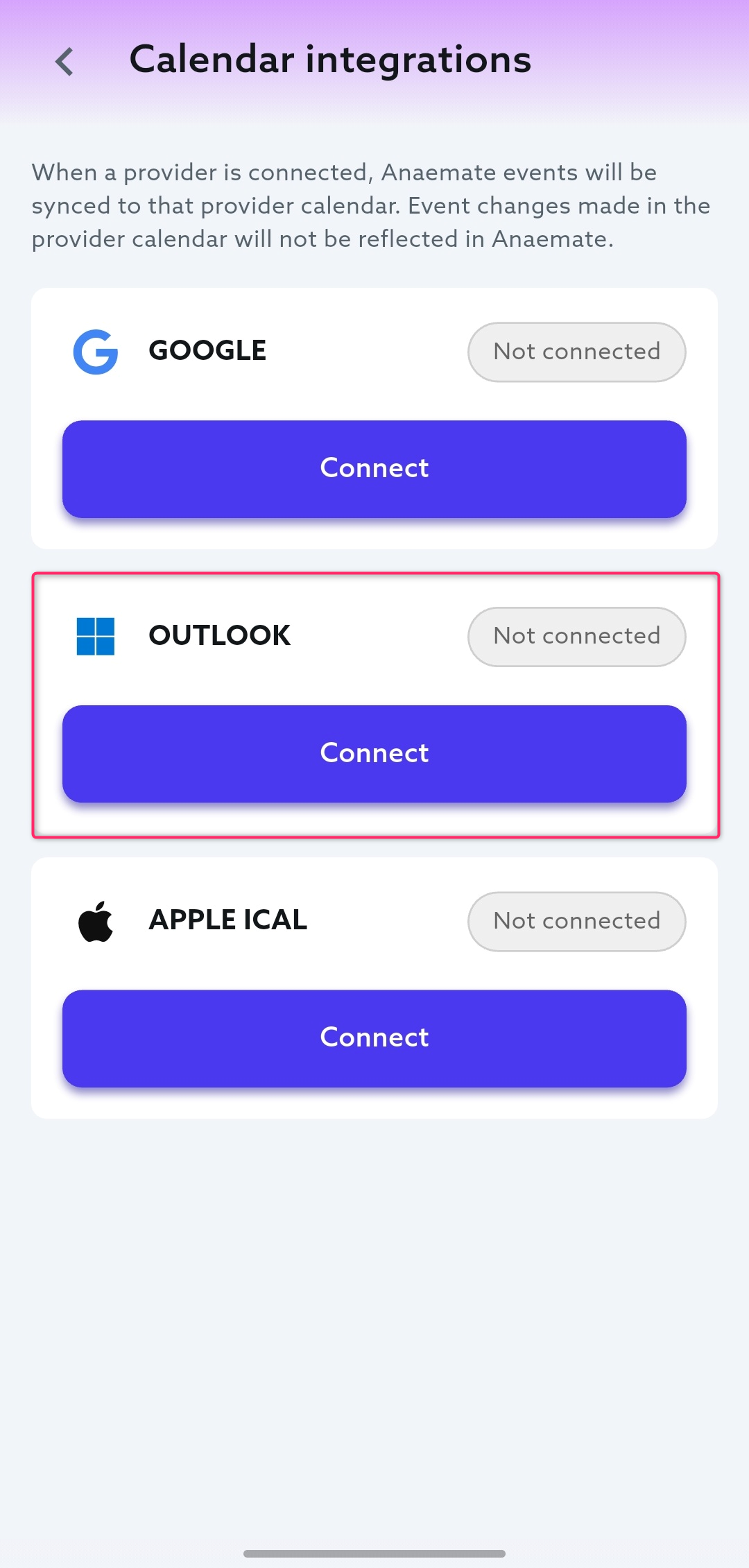
Find Outlook.
Select Connect.
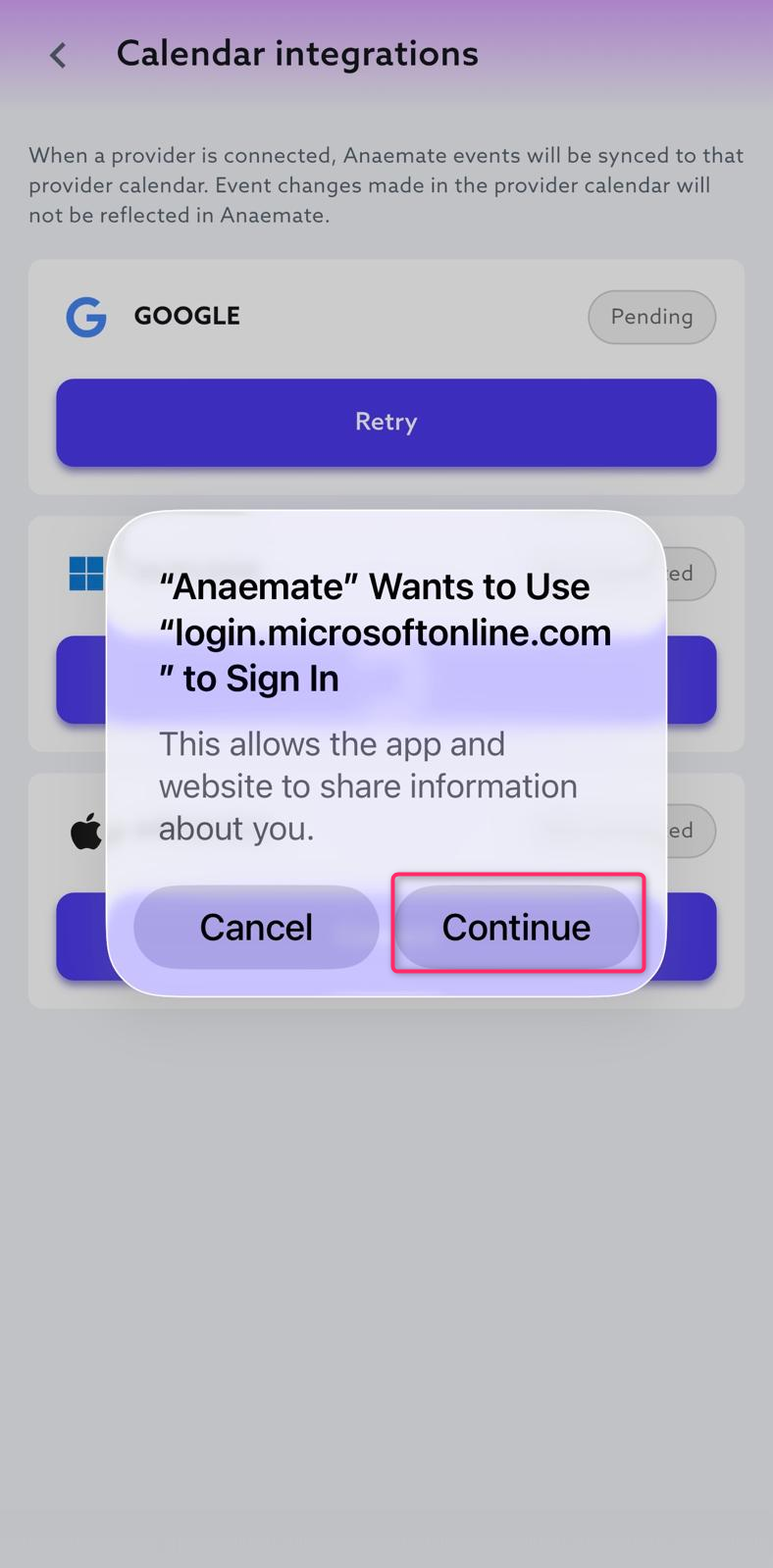
When asked to continue to Outlook’s sign-in page, select Continue.
Step 3: Sign in to Outlook
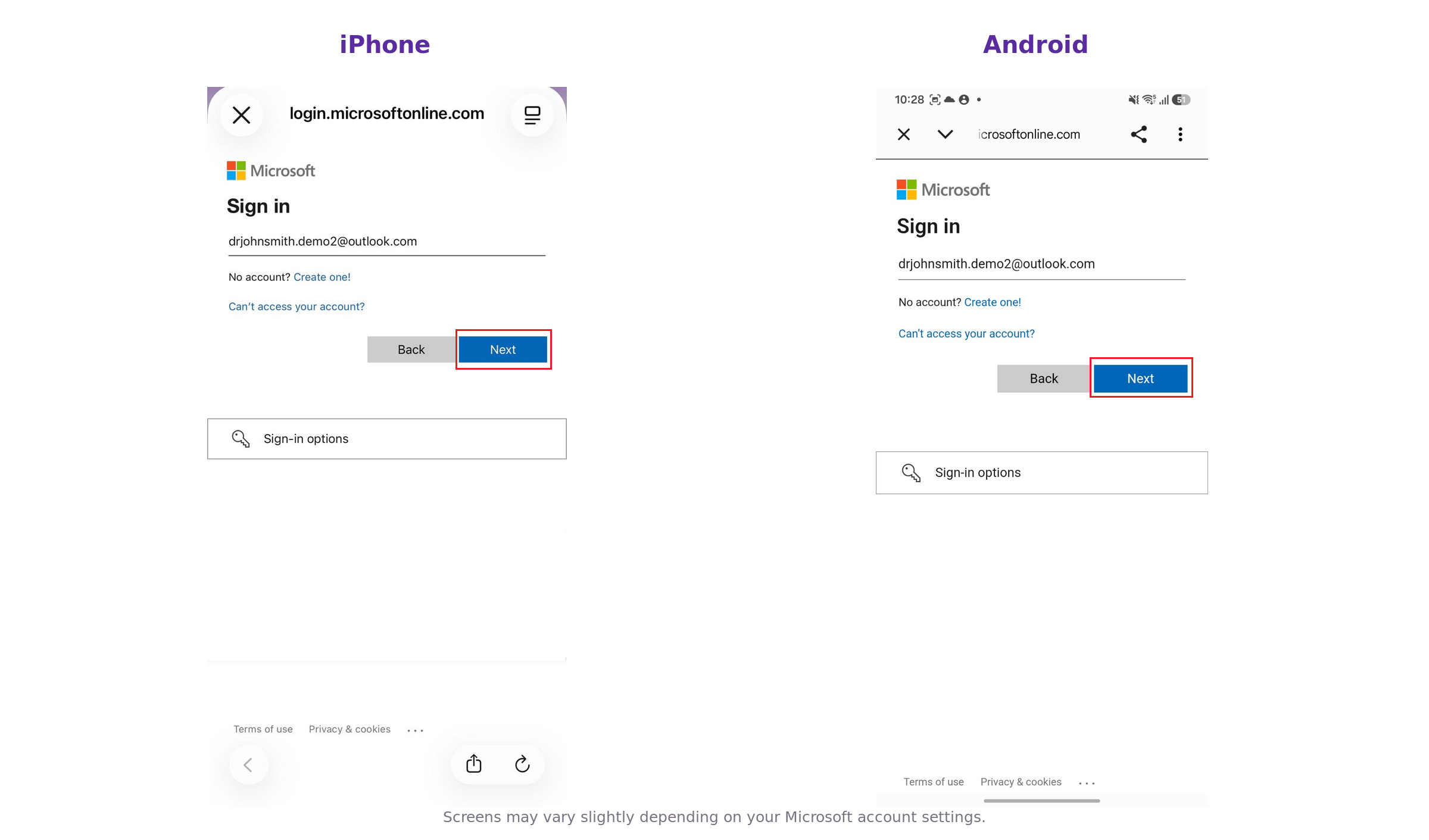
Enter the email address for the Outlook or Microsoft account you want to connect.
Select Next.
Enter your Outlook or Microsoft account password.
Select Next.
Complete the verification, such as receiving a security code if you prompted to.
Step 4: Allow Calendar Access
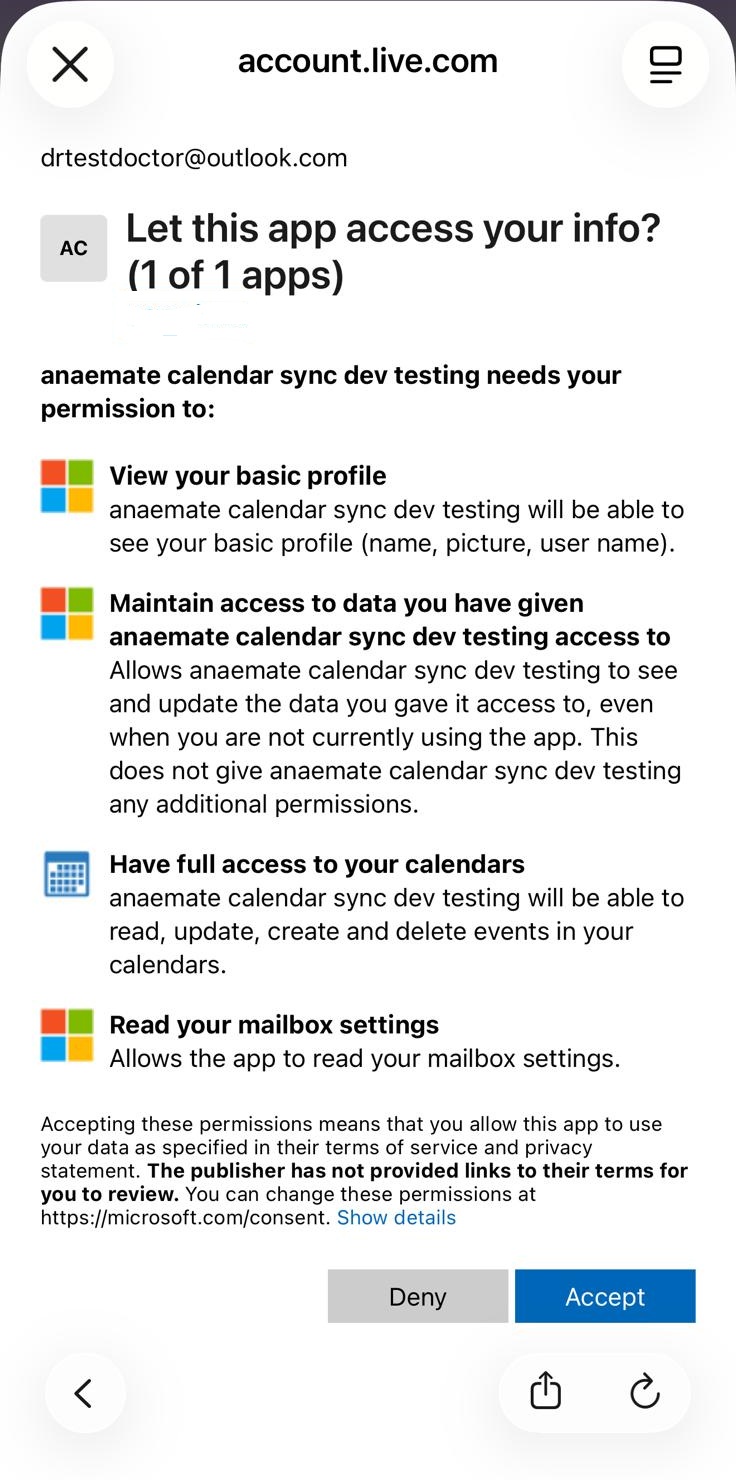
If Microsoft displays an access request, review the permissions, Select Accept or Continue to allow Anaemate to connect to Outlook.
Step 5: Choose Your Sync Start Date
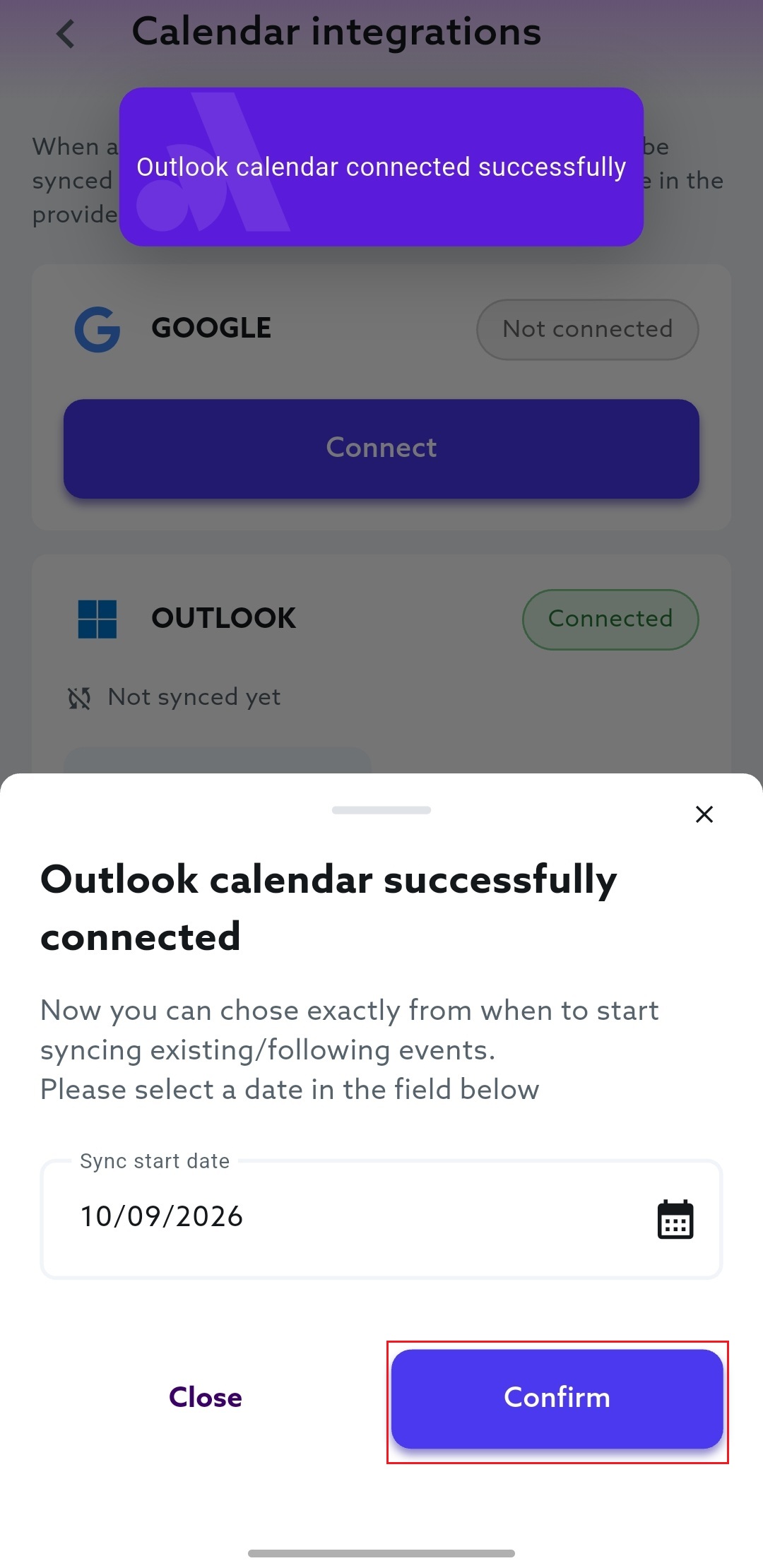
Select the date from which you want your Anaemate events to start syncing.
Select Confirm.
Only events occurring on or after the selected date will be synced.
Step 6: Confirm the Connection
1. Wait while Anaemate starts the calendar sync. This may take a few minutes.
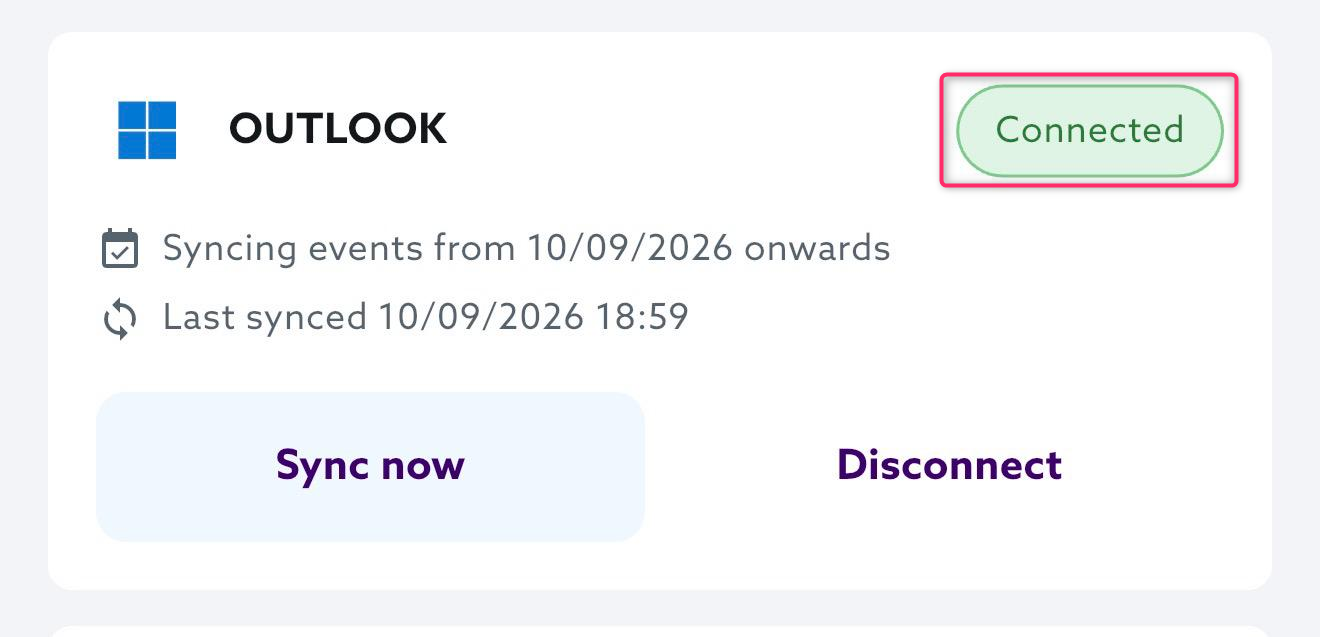
2. Check that Outlook shows as Connected in Calendar Integrations.
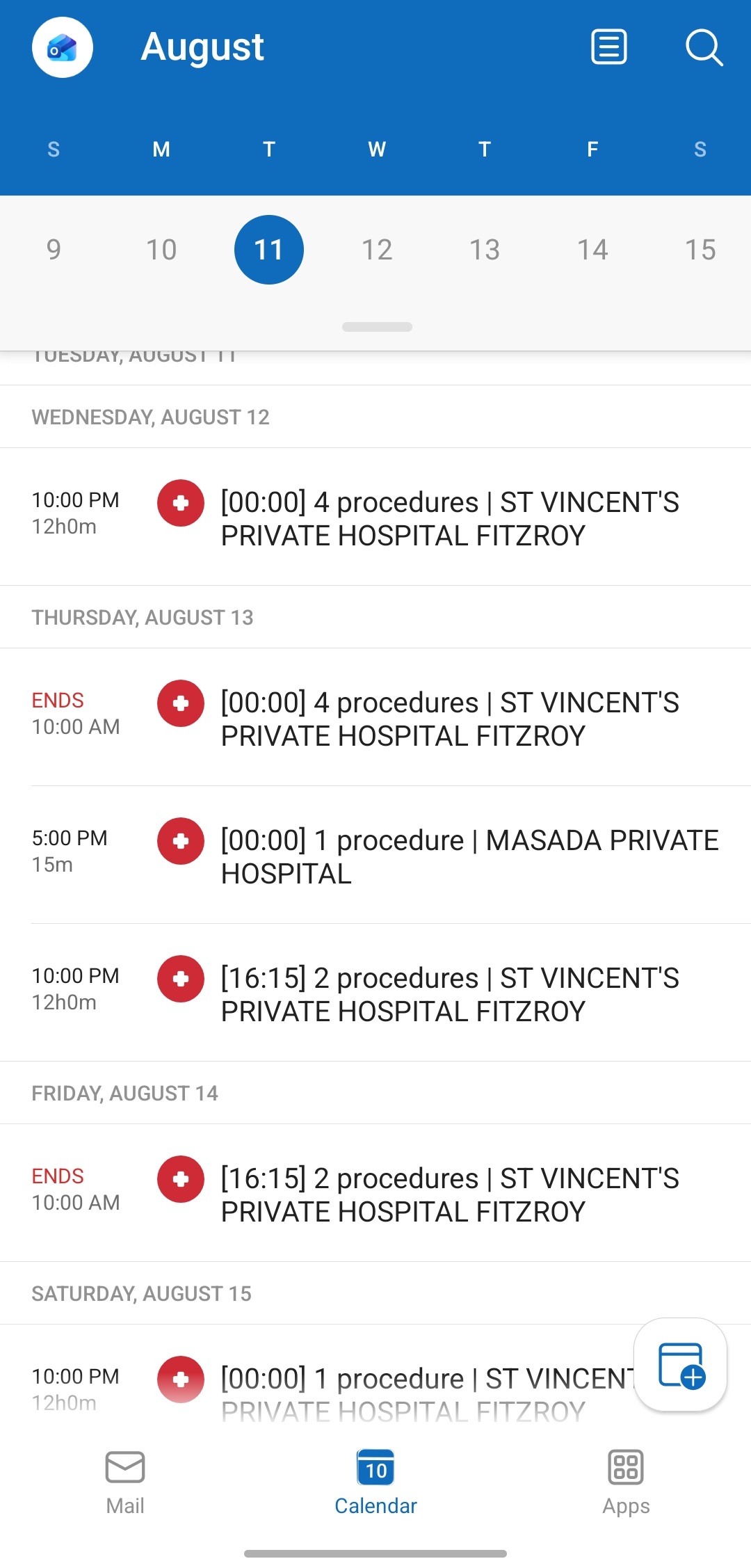
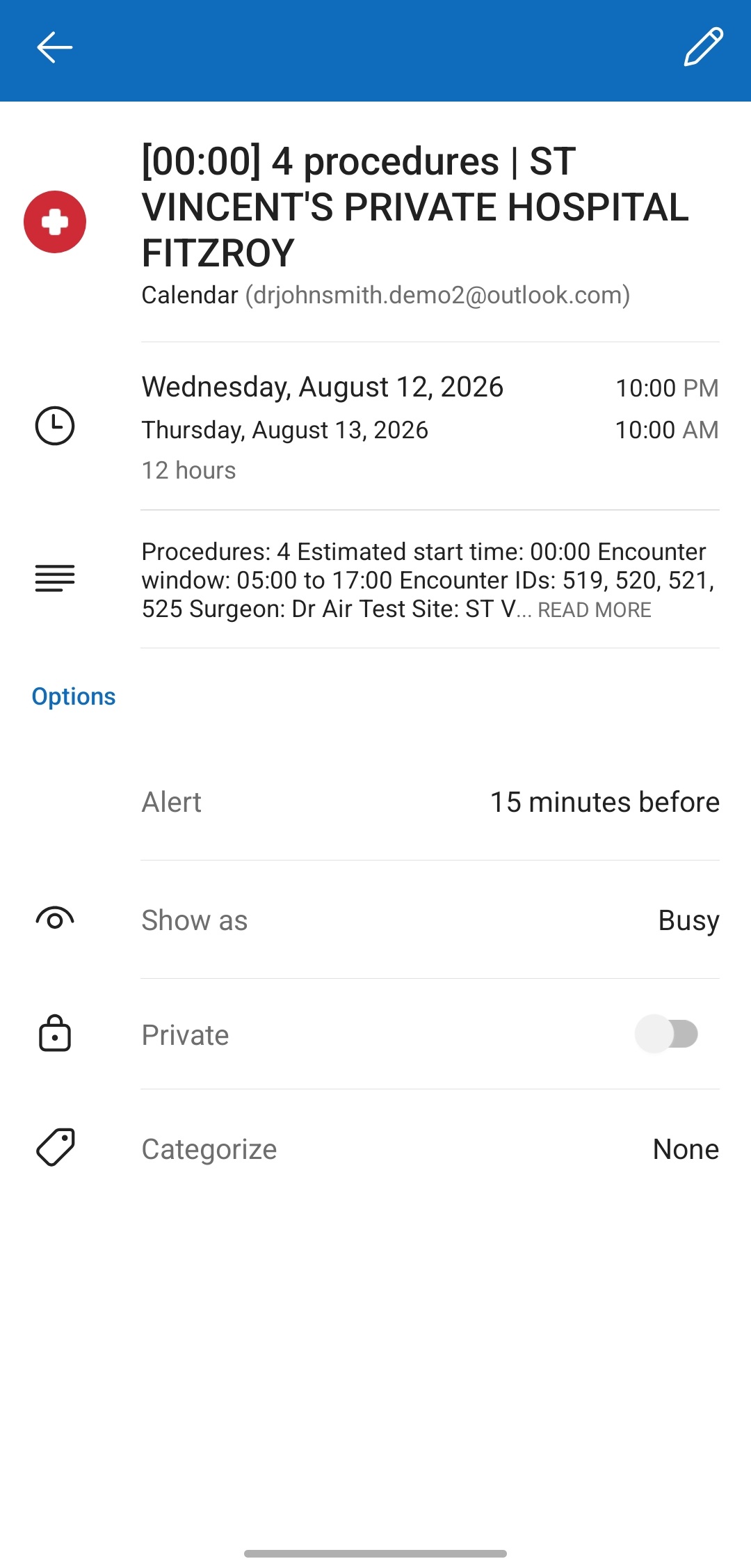
3. Open Outlook Calendar, or the calendar app linked to the same Microsoft account, and confirm that an Anaemate event appears.
Important Information
Calendar updates only flow one way:
Changes made in Anaemate will appear in your connected Outlook Calendar.
Changes made directly in Outlook Calendar will not update Anaemate.
Always make changes to encounters in Anaemate.
For privacy, patient names and patient details are not displayed in your connected calendar. Open Anaemate to view the complete encounter information