
Connect Anaemate to Apple Calendar
Follow the steps below to connect your Anaemate calendar to Apple Calendar on your iPhone.
Before you begin
Make sure you have:
The latest version of the Anaemate app
Access to the Apple Calendar app on your iPhone
A few minutes to complete the connection
Step 1: Open Calendar Sync
Open the Anaemate app.
Select Settings.
Select Calendar Integrations.
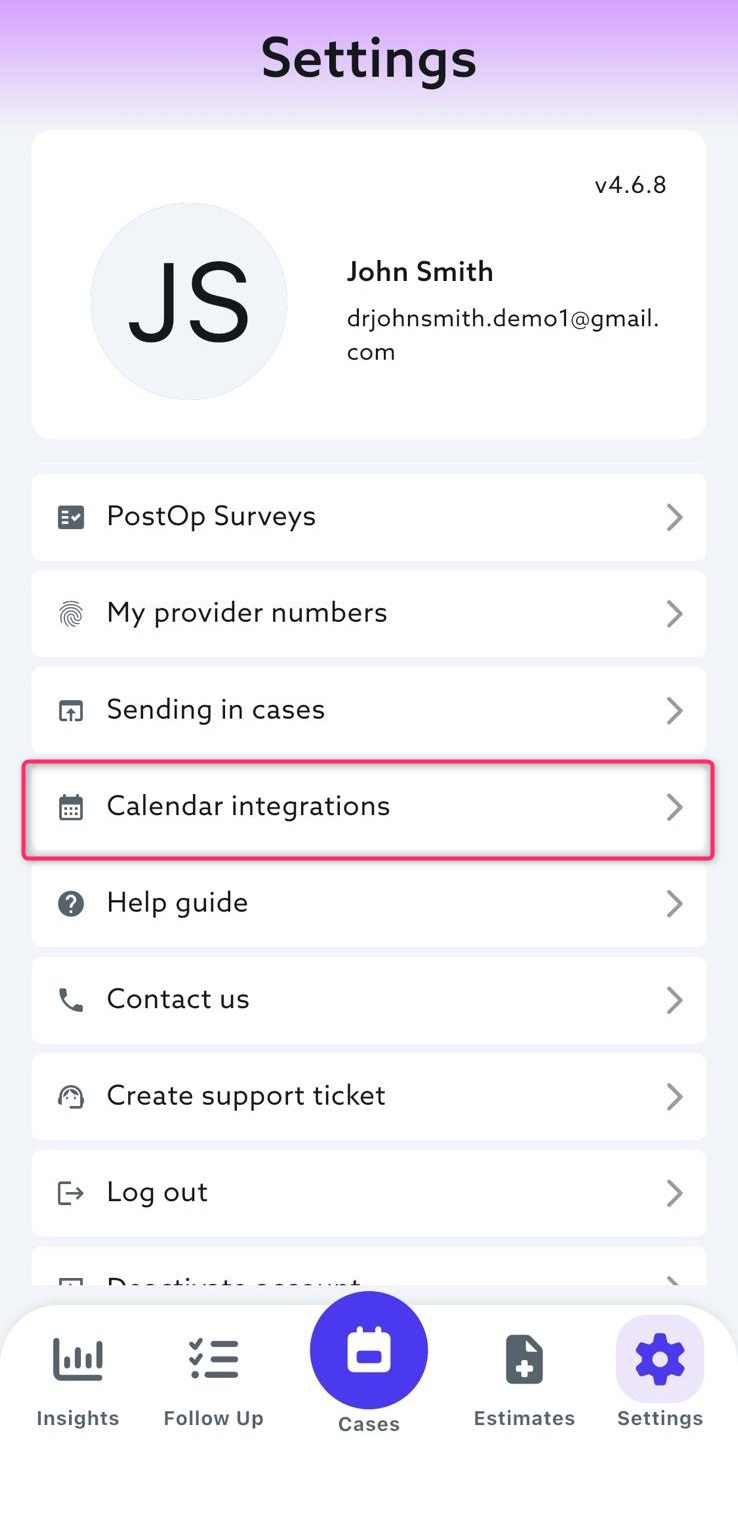
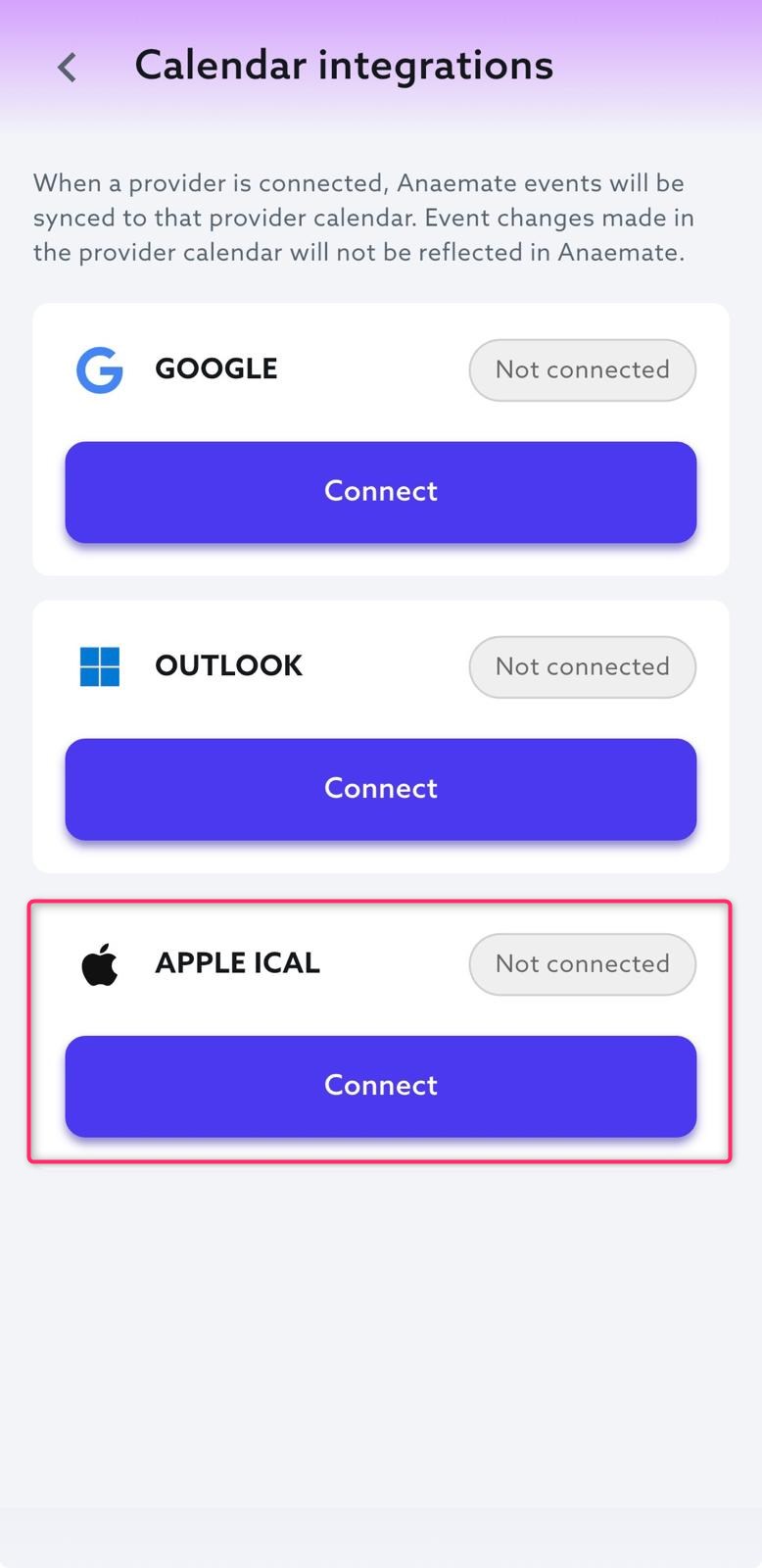
Step 2: Connect Apple Calendar
Find Apple iCal.
Select Connect.
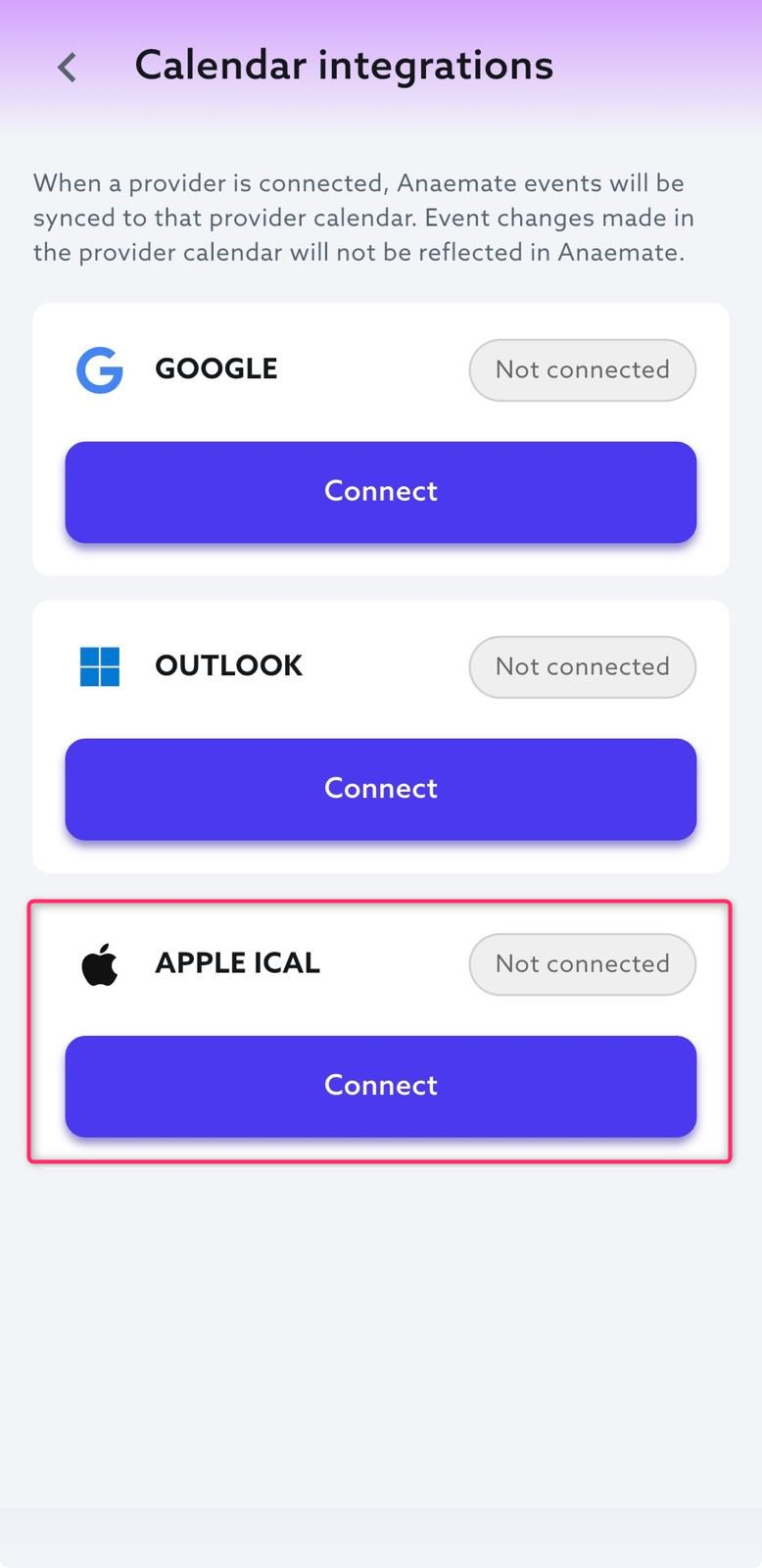
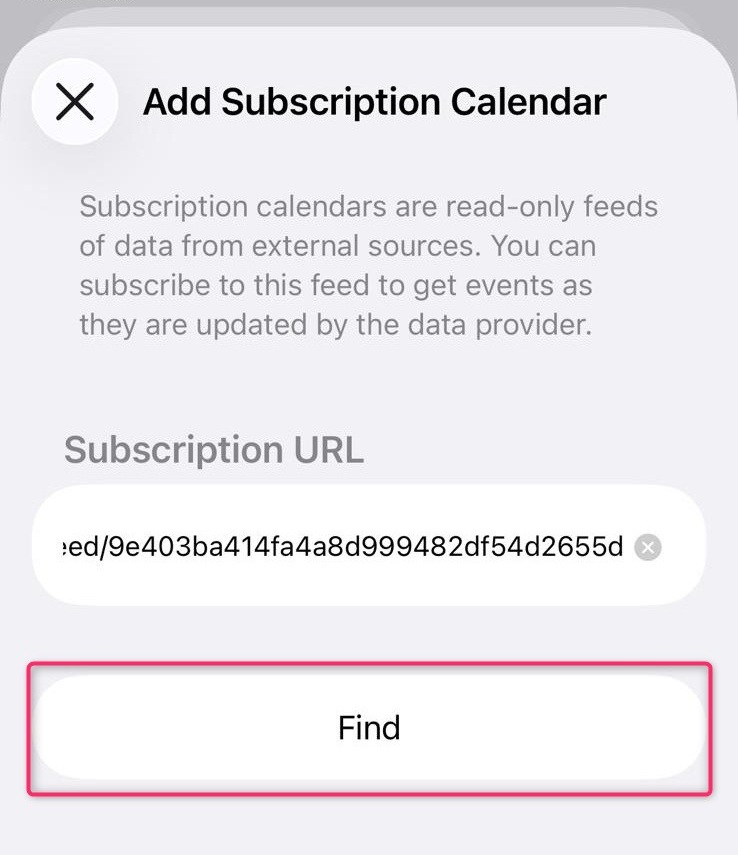
Step 3: Find the Calendar
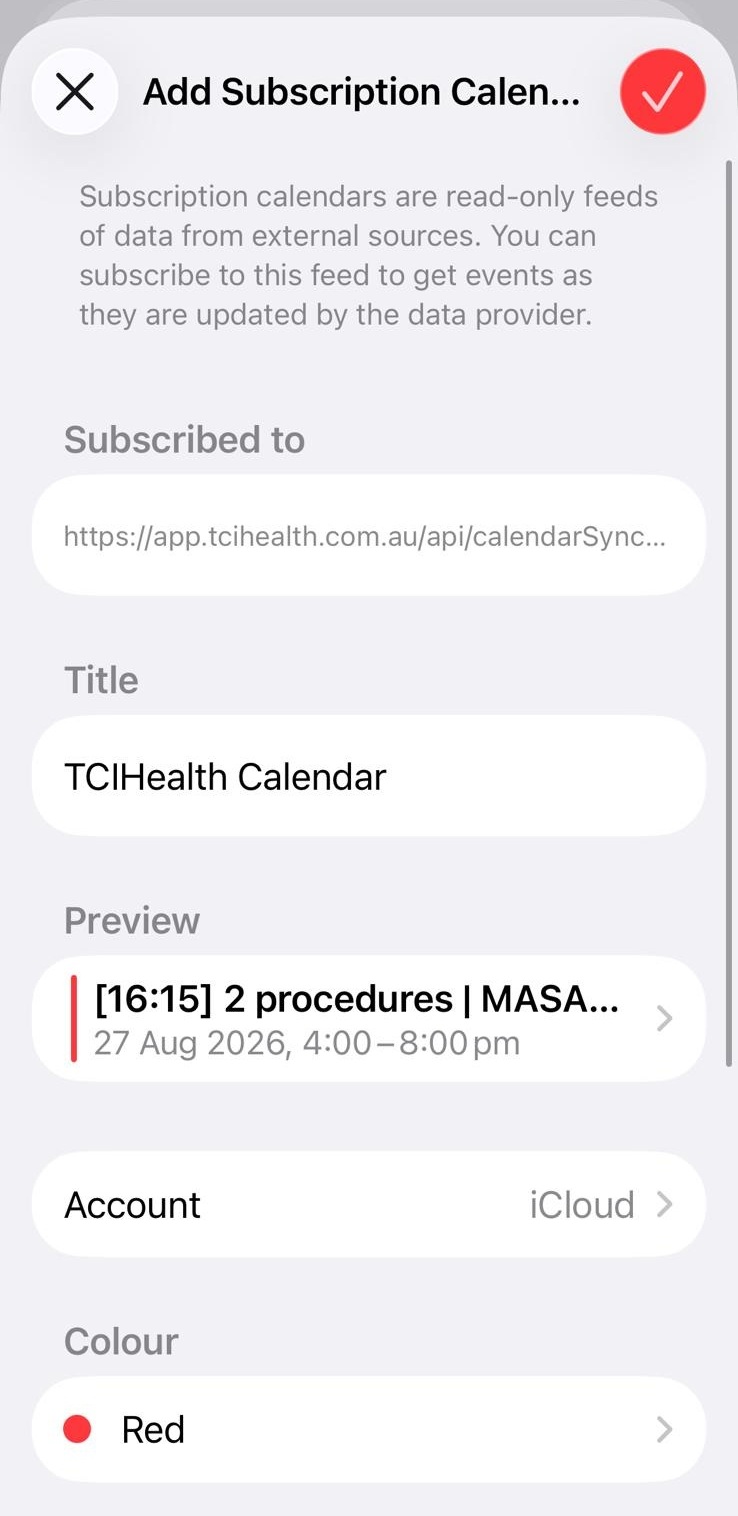
Your iPhone will open an Add Subscription Calendar screen with the calendar address already entered.
Select Find.
Step 4: Add the Calendar
Review the calendar preview, then select the checkmark in the top-right corner to add the calendar.
Depending on your iPhone version, this option may appear as Add instead.
Step 5: Wait for the Calendar to Update
Apple controls how frequently subscribed calendars refresh. New or updated Anaemate events may therefore take some time to appear.
Anaemate cannot control or guarantee when Apple Calendar will display these updates.
Step 6: Confirm the Connection
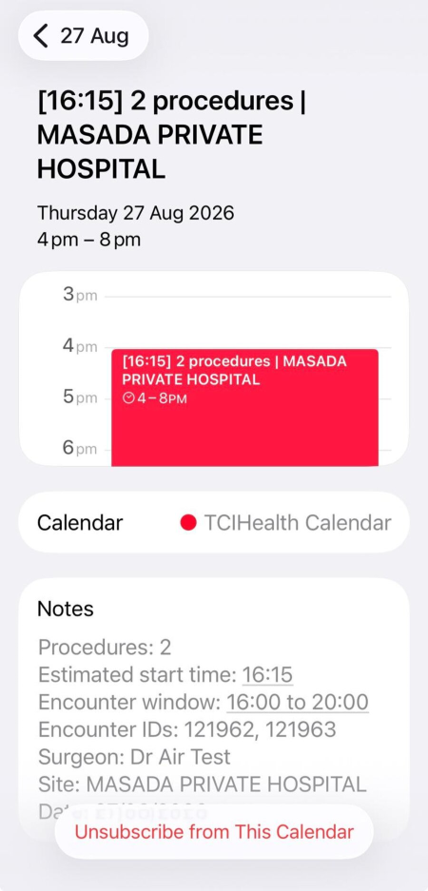
Open the Apple Calendar app and confirm that your Anaemate events are visible.
Important Information
Calendar updates may not appear immediately
Apple controls how often subscribed calendars refresh. New or updated events may take some time to appear in Apple Calendar.
Apple Calendar uses a rolling date range
Apple Calendar displays Anaemate events from the previous three months through to the next 12 months.
As this date range moves forward, older events will stop appearing in Apple Calendar. They will remain available in Anaemate.
This rolling date range applies specifically to the Apple Calendar connection.
Calendar sync is one-way
Changes made in Anaemate will appear in Apple Calendar, but changes made in Apple Calendar will not update Anaemate.
Make all event changes in Anaemate so your calendar information remains accurate.
Patient privacy
For privacy, synced calendar events do not include patient names or patient details. Open Anaemate to view the full encounter information.