
Anaemate Release Notes - 12 October 2026
This release introduces a clearer mobile login experience and pre-op instructions for individual encounters, alongside improvements to billing, patient communications and everyday workflows.
Key highlights
A clearer way to log in to the mobile app
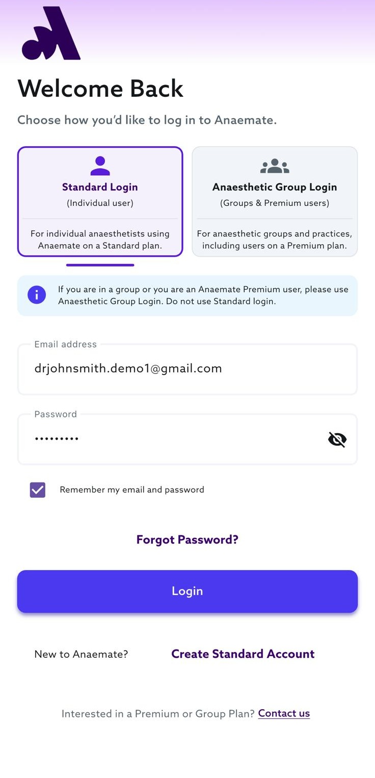
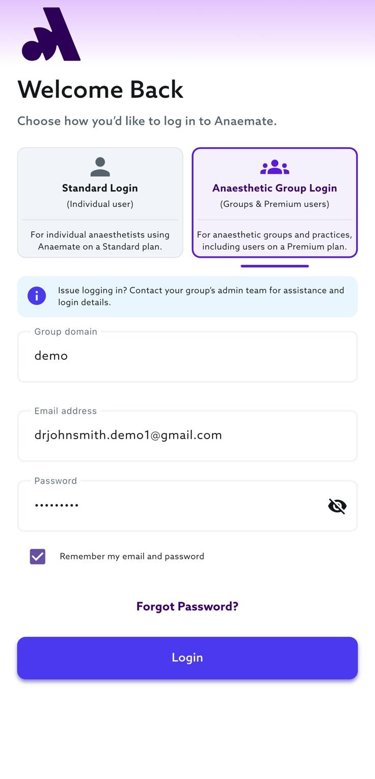
The redesigned login screen has dedicated tabs for Standard users and Group or Premium users, making it clearer which login option to use.
Standard users: choose Standard Login and enter your email address and password. Group and Premium users: choose Anaesthetic Group Login and enter your group domain, email address and password. Contact your group’s admin team if you need your login details.
Standard users
| Group and Premium users
|
Pre-op instructions for individual encounters on mobile
You can now create, manage and select patient-specific pre-op instructions directly in the mobile app.
Create or find your instructions
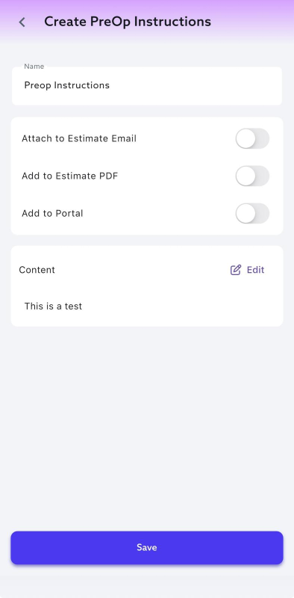
Go to Settings > PreOp instructions to find existing instructions or create and save new ones using the built-in editor. Choose whether to attach them to the estimate email, include them in the estimate PDF or display them in the patient portal.
Select instructions for the encounter
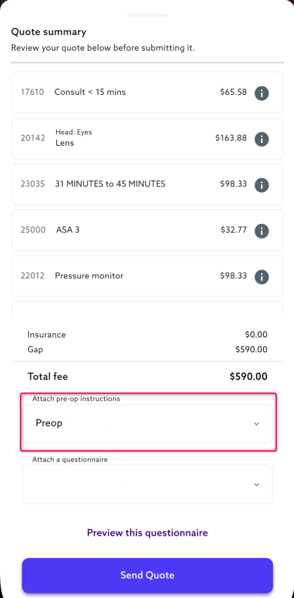
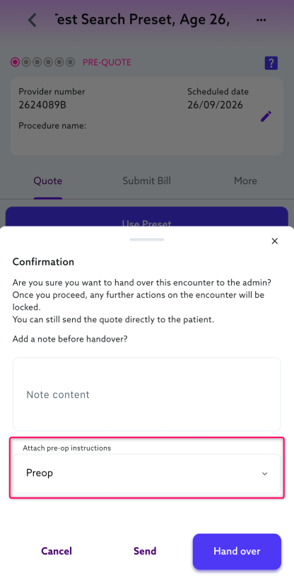
Choose the required saved instructions from Attach pre-op instructions in Quote Summary or the Handover screen. You can leave this blank if instructions are not needed.
Send the quote or hand over
Instructions are shared with the patient when the quote is sent, according to the selected options. Choosing Hand over saves the instructions against the encounter for the admin; it does not send them to the patient.
Settings: create or edit
| Quote Summary: select
| Handover: select
|
Enhancements
Billing, Claims & Reporting
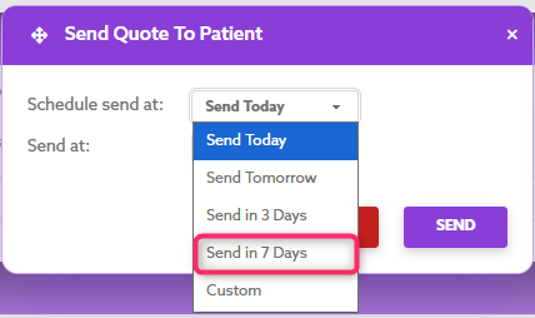
Schedule quotes before the procedure
Schedule quotes to send automatically seven days before the procedure, when the procedure is at least seven days away. Available from Encounter > Billing > Quotes and Billing > Quotes.
Clearer BAS Quarterly Payment Reports
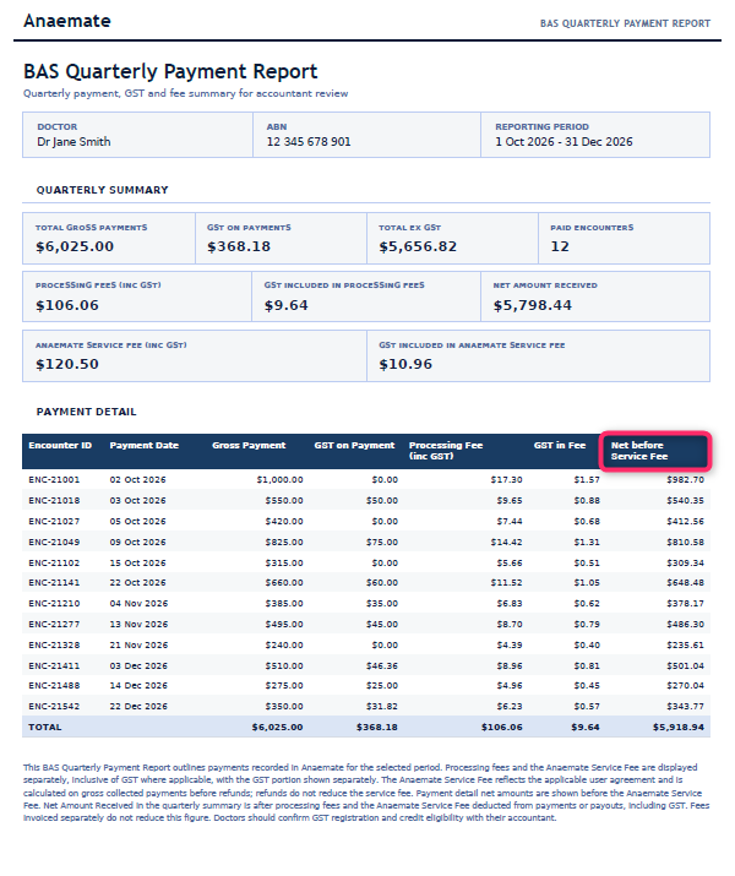
The quarterly summary shows the Anaemate Service Fee and its GST separately from Processing Fees. The service fee is calculated on gross collected payments before refunds. Payment Details labels amounts as Net before Service Fee, while the summary shows the net amount after fees deducted from payments or payouts.
Quote due dates after procedure changes
The dashboard now offers the same quote due-date confirmation as mobile when a procedure date changes. Due dates adjust where needed to suit the new procedure date, with past dates set to today.
Assignment of Medicare Benefits information
Updated patient consent and billing information provides clearer explanations of Assignment of Medicare Benefits and how Medicare benefits are paid.
Find presets and billing rules more easily
Search presets by name when applying them to an encounter on mobile or the dashboard. Search is also available in the preset and billing-rule lists. Within presets, billing rules are listed alphabetically and can be searched by name.
Free text item codes on PDFs
Free text item names, such as ANAES, appear in the Item column on quote and invoice PDFs, placing the billed code where payers expect it.
Assignment wording on health fund invoices
Invoices downloaded using Download Invoice for Health Fund include Assignment of Medicare Benefits wording below the item table to support manual claims.
Calendar & Scheduling
Manage changes to recurring calendar events
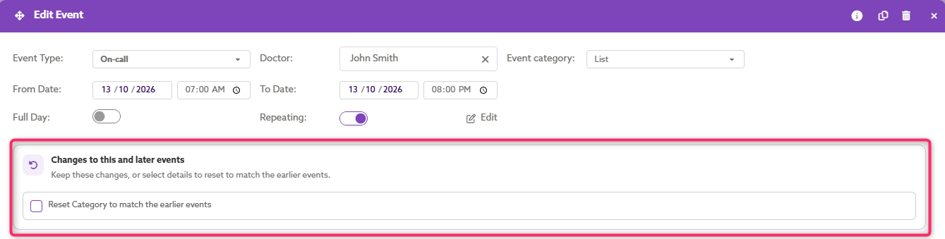
The Edit Event screen highlights details that differ from earlier events in a recurring series. Keep these changes, or reset selected details—such as the event category—to match earlier events.
Easier access to event and patient files
Mobile events show the document count and Tap to expand for easier access to attachments. Event files on mobile and the dashboard appear newest first, as do mobile patient documents. The dashboard Upload File button is clearer.
Monday-first date selection
The mobile date selector starts on Monday, consistent with the Calendar and dashboard.
Clinical & Patient Information
Automatic insurance update after verification
When a health fund verification response states “Medical claims are not covered for this patient”, the encounter changes to Self-insured. An encounter note retains the health fund name, membership number and response.
Default health fund cover levels after scanning
Sticker and list scans use the doctor’s default cover level for Australian Unity and Doctor’s Health Fund. If no default is recorded, the fallback is Basic Plus for Australian Unity and Top Cover for Doctor’s Health Fund.
Clearer bad debtor warning
The warning makes it clear when a patient’s Medicare number matches a previous bad-debt record, helping users understand why the patient has been flagged.
Communications & Administration
Patient detail requests outside business hours
On mobile and the dashboard, requests for patients to update their details show a prompt outside business hours (8 am–6 pm, Monday–Friday). Choose Confirm to send during business hours or Send Now for immediate delivery.
Latest handover date and time
Hover over the date icon beside Handed Over to see the latest handover date and time, without searching activity logs.

Clearer activity logs
Logs > Activity Logs shows readable action names, including List Upload, icons identifying web or mobile activity, and an activity filter to help managers review admin actions.

Encounter numbers in help requests
When you request help from an encounter in the mobile app, the email subject includes the encounter number, making it easier for the support team to identify which encounter you need help with.
Fixes & Reliability Improvements
Accurate gap fee allocation
Gap fees are shared across eligible billing items according to their units, preventing negative fees when item 25025 is included. NIB GapSure continues to apply the gap to the T10 item only.
Age-appropriate pre-op questionnaires
Patients added through list scanning have the appropriate default pre-op questionnaire selected based on the doctor’s paediatric age setting.
Access all uploaded calendar lists
Calendar events show all uploaded list PDFs, including additional lists added to events with existing encounters and lists matched to encounters created manually.
Recognise returning patients from sticker scans
Sticker scans recognise existing patients when creating a new encounter, helping keep their history together and avoid duplicate patient records.
Leave missing patient addresses blank
When no postal address is entered, the state field stays blank instead of defaulting to Victoria (VIC).
Group contact details on third-party quotes
Quote PDFs for third-party insurers show the group’s email address and phone number where available.
Item 25025 units and fee display
The units for item 25025 appear consistently on quotes and invoices. For Self-insured encounters billed using a total fee, the Fee Charged column shows the amount allocated to the item.
Clearer Calendar week view
Events in the Calendar’s Week view display at suitable widths across all days, making them easier to read.
Clearer billing rule values
Percentage-based billing rules show a % symbol in the Amount column, making the rule easier to understand.
More accurate event category filters
Filtering by Event Category in the Calendar or Daily Planner shows only matching events and their encounters.
Find payments when reconciling ERAs
Available EFT payments are identified using the health fund’s payment date, helping admins find relevant payments received before the ERA was created.
Clearer Bupa Overseas quotes
Bupa Overseas gap quotes use wording suited to overseas cover, without references to Medicare rebates.
Updated insurance details after changing cover
Changing an encounter from PIP to Overseas removes the previous hospital email address from Insurance Details.
Workers compensation invoice delivery
Workers compensation invoices are sent to the insurer when a new encounter is submitted.
Custom email and SMS templates
Selecting a custom template when composing an encounter email or SMS fills in its content, including the email subject, and adds the relevant encounter details to supported template fields.
Patient communication settings honoured
Pending patient messages, including refund confirmations, will not be sent if communications for the encounter are disabled before the message is sent.
Gap fees on derived fee items
Gap fees are no longer added to derived fee items 25025, 25030, 25050, 18219 and 18227 across encounter types. For labour epidurals, the gap is shared between the consultation and initial epidural item.
Correct details on refund forms
The form patients use to provide refund bank details shows the appropriate doctor or practice information.
Updated insurance type in Claim Errors
The Follow Up > Claim Errors tab shows the updated insurance type after the Insurance Declined Pathway is used to invoice the patient.
Access encounter notes after verification warnings
Health fund verification messages in encounter notes no longer block users from adding notes or moving to another tab.
More accurate patient matching after scanning
Patient matching checks first name, surname and date of birth, helping distinguish patients who share the same first name and birth date.
Emergency item claim quantities
Claims containing emergency items use the appropriate quantity information to avoid invalid-quantity rejections.
Send pre-op questionnaires from mobile
Selecting Send now in the mobile app sends the pre-op questionnaire to the patient immediately.
Doctor’s Health Fund Top Cover billing
Changing a previously quoted encounter to Doctor’s Health Fund Top Cover resets the billing rule, sets Patient Pays Total Fee to No, and removes the previous quote information.