
How to use pre-op instructions in the mobile app
Create or find saved pre-op instructions, then select the instructions needed for an individual encounter before sending the quote or handing over to your admin.
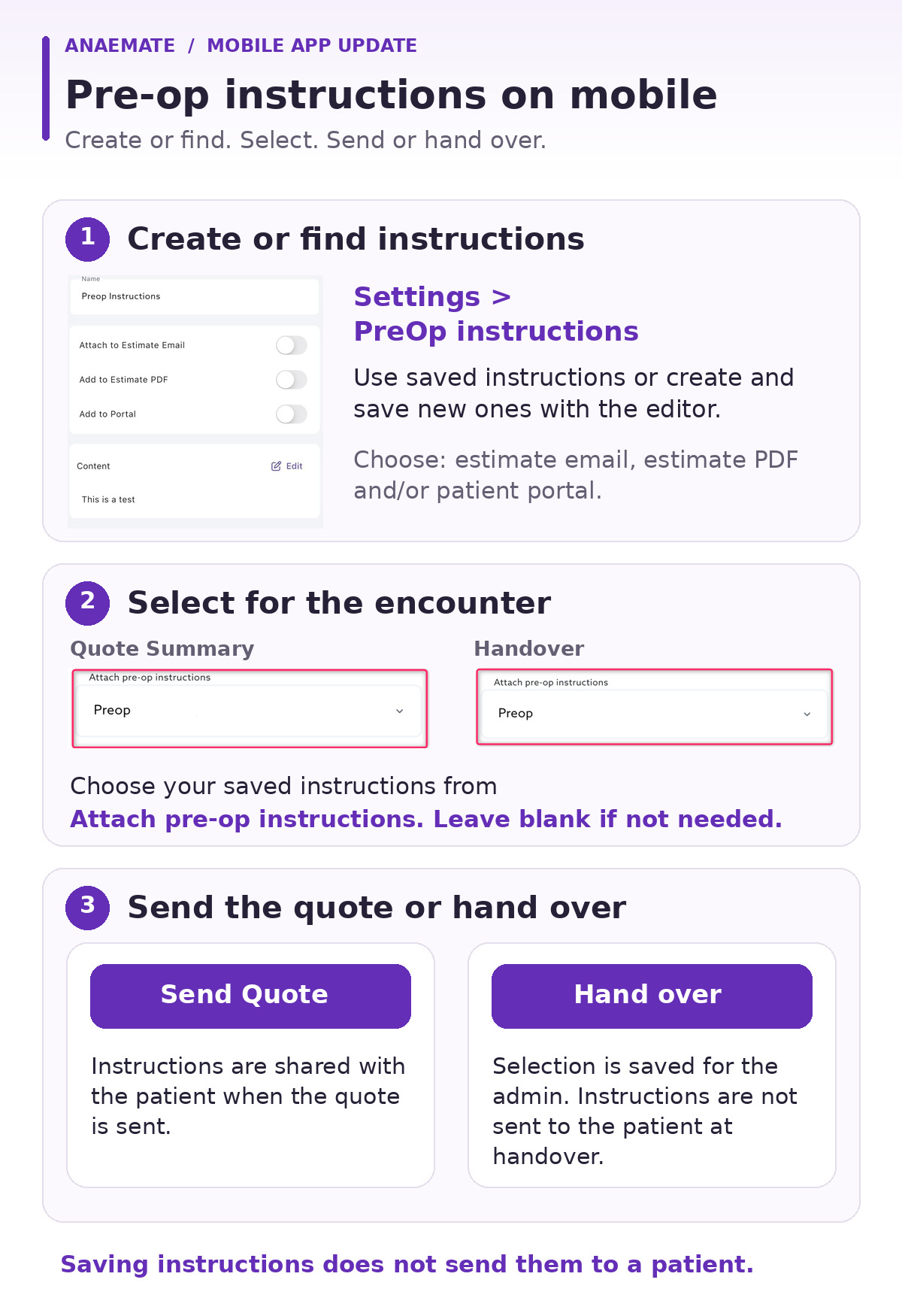
1. Create or find your instructions
Go to Settings > PreOp instructions to find existing instructions or create new ones.
When creating or editing instructions:
Enter a name so you can easily identify them.
Tap Edit beside Content to enter or update the text using the built-in editor.
Choose where the instructions should appear:
Attach to Estimate Email
Add to Estimate PDF
Add to Portal
Tap Save.
Group-shared instructions marked Main can be viewed but cannot be edited.
2. Select instructions for the encounter
Open the encounter and choose the required saved instructions from Attach pre-op instructions:
In Quote Summary, before sending the quote.
In the Handover screen, before handing the encounter to your admin.
Selecting instructions is optional. Leave the field blank if they are not needed.
3. Send the quote or hand over
Send Quote: The selected instructions are shared with the patient according to the email, PDF and portal options configured for those instructions.
Hand over: The selection is saved against the encounter for the admin. Handover does not send the instructions to the patient; they are shared when the quote is sent.
Remember: Creating and saving instructions does not send them to a patient. They must be selected for the encounter.