
Anaemate Release Notes - 02 November 2026
This release brings calendar event colours for Google Calendar and Outlook, clearer payment reporting, more ways to sort dashboard tables and patient sticker scanning for mobile fee estimates, alongside improvements to billing, encounter management and patient communications.
Key Highlights
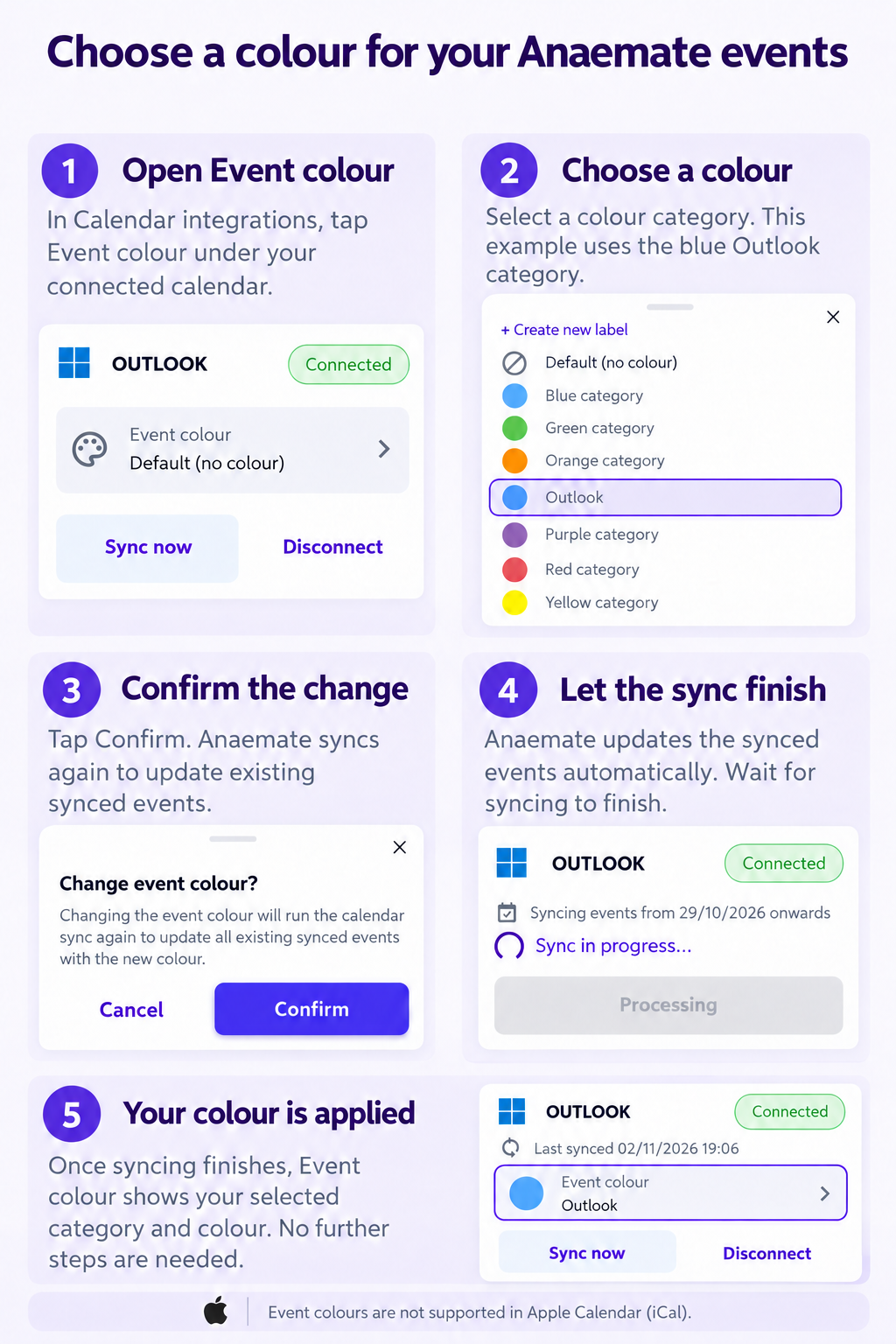
Distinguish your Anaemate events by colour
Choose a colour for synced Anaemate events to help distinguish them from other appointments in Google Calendar and Outlook. Event colours are not supported in Apple Calendar (iCal).
More ways to sort dashboard tables
Click more column headings to organise dashboard tables around your workflow—for example, by surgeon or hospital in Patient Encounters, or by insurance type or last note date in Follow Up. An arrow shows the current sort order, and hovering over the heading explains how the next click will sort the list.
Scan patient stickers when creating fee estimates
When creating a fee estimate in the mobile app, scan a patient sticker to capture patient details using the same scanning workflow available for encounters, reducing manual entry.

View monthly payments with or without refunds
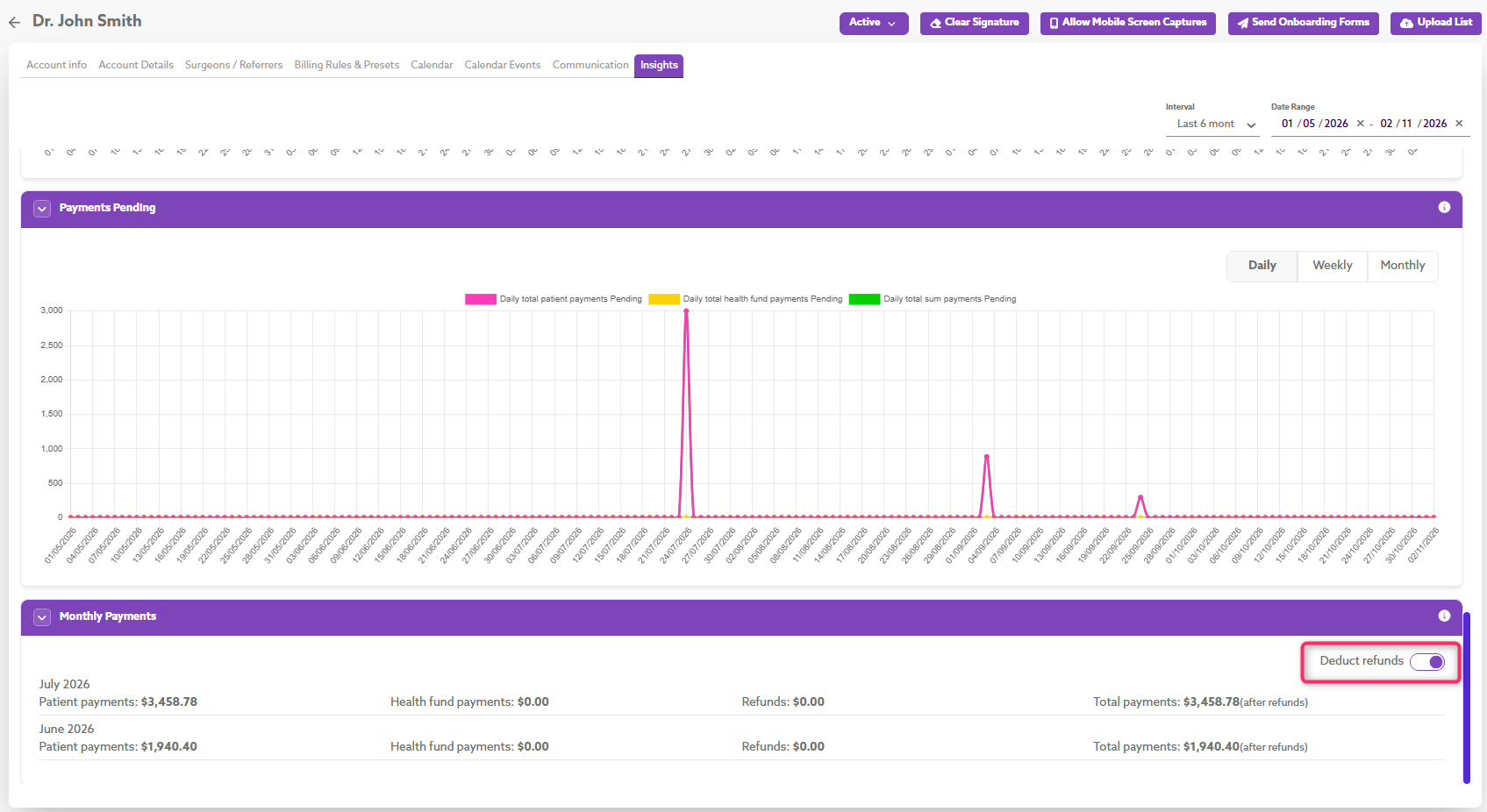
Admins can review a doctor’s refund total under Doctors > Insights > Monthly Payments. Switch Deduct refunds on to subtract refunds from the payment total, or off to view payments before refunds. Refunds are counted in the month they were processed, even if the original payment was received earlier.
Enhancements
Billing and Reporting
Choose the rebate level in a Preset
For private billing with Patient Pays Total Fee set to Yes, choose Schedule Fee or Preferred Rate as the patient rebate basis in a Preset. The selection applies when you use the Preset, on mobile and the dashboard.
Wider AMA percentage range for third party billing
On mobile and the dashboard, third-party billing using ASA items supports AMA percentages from 50% to 200%, extending the previous 100% to 200% range.
Clearer claiming guidance on preliminary invoices
Preliminary Invoice PDFs include a notice directly beneath the title explaining that the document is not to be used for patient claiming. The notice also explains that, where applicable, a final invoice and receipt for claiming will be issued after the procedure.
Mobile App and Patient Details
Review patient details from uploaded stickers
When you upload a patient sticker to an existing mobile encounter, review any differences and choose to keep the existing details or apply changes where permitted. If changes aren’t available, you can request admin help.
Clearer patient details in the mobile app
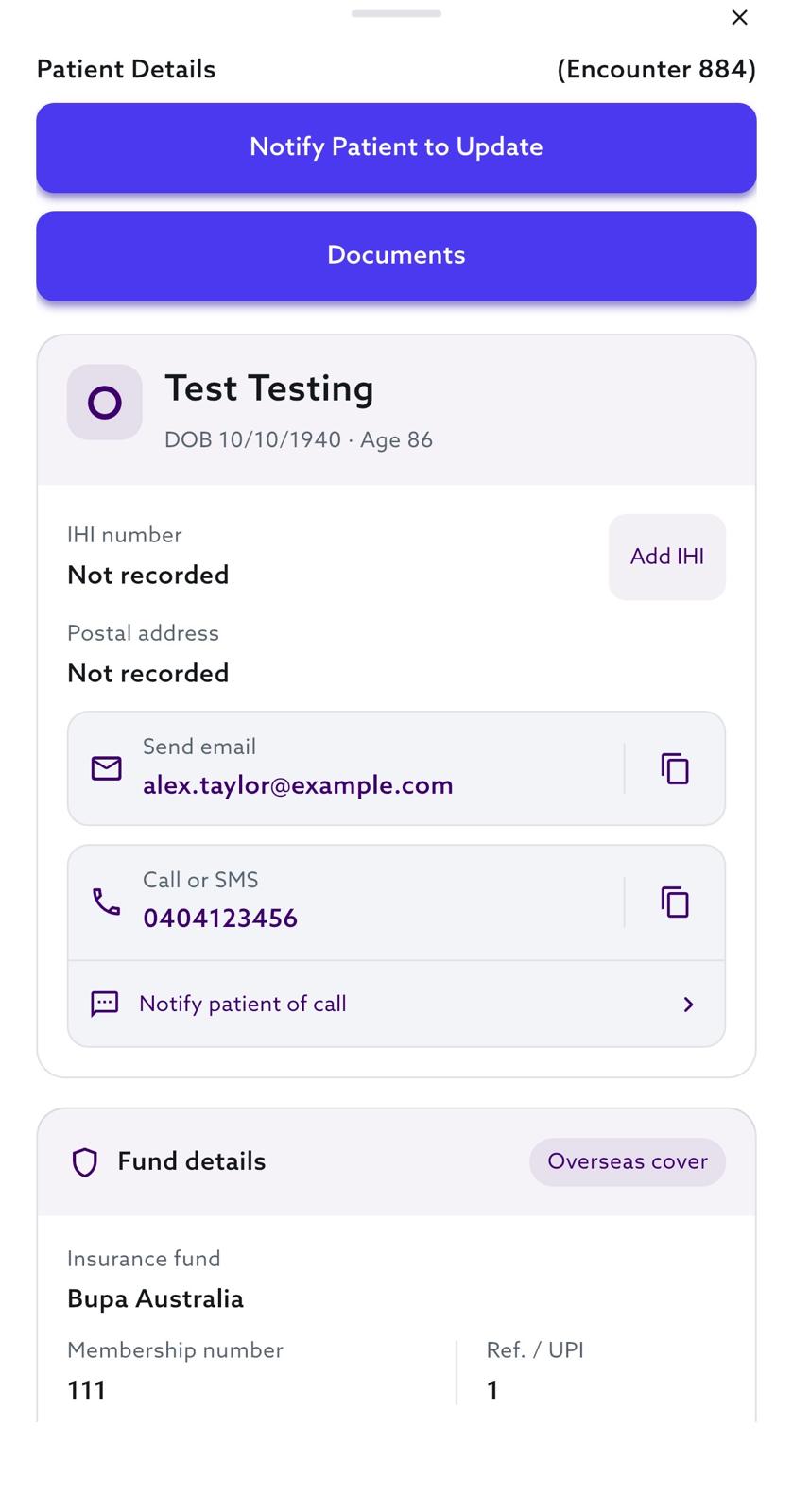
The mobile Patient Details screen presents patient, insurance and contact information more clearly. Extra spacing between phone and email actions makes it easier to choose the intended contact option.
Current date and time for new mobile encounters
New encounters created manually or by scanning a sticker now default to the current date and time, rather than midnight, helping them appear within the relevant calendar event.
Australian phone number entry checks
Australian mobile and landline fields accept no more than 10 digits, helping prevent an extra digit from being entered accidentally.
Identify funds with additional cover levels
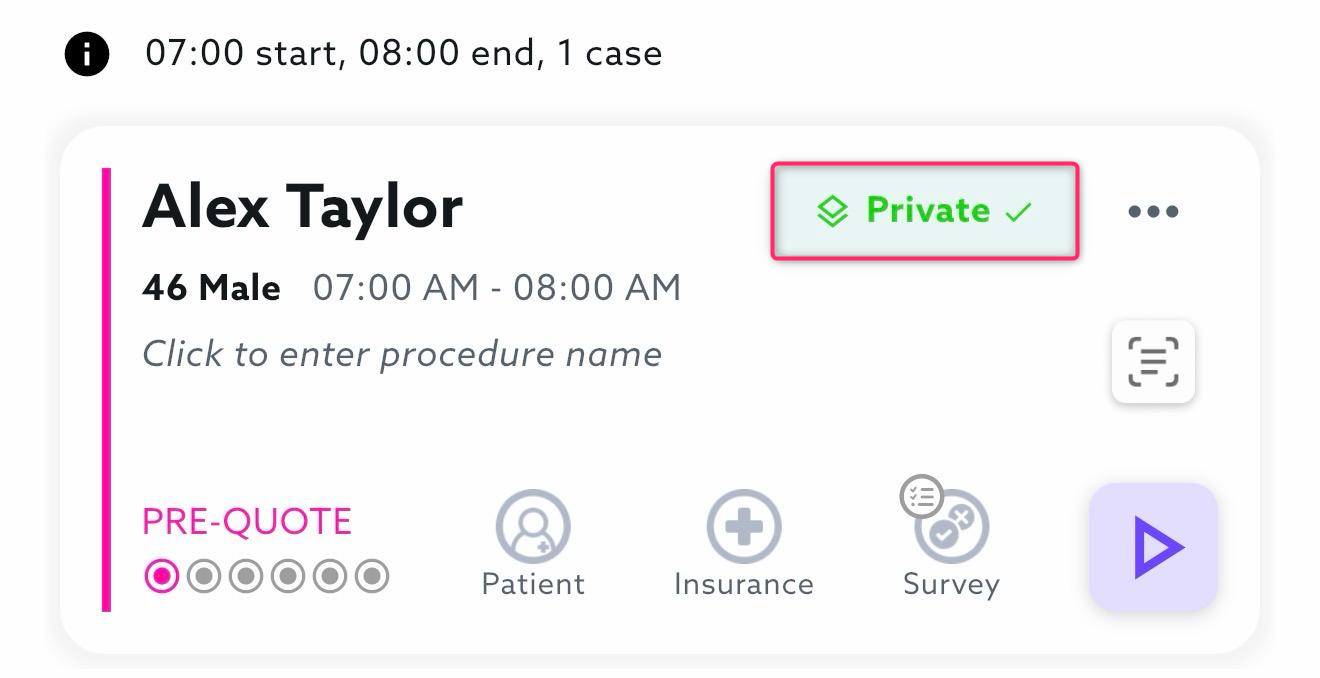
An additional icon identifies Australian Unity and Doctors Health Fund encounters, drawing attention to funds with additional cover levels. The existing green verification indicator remains visible when verification succeeds. Available on mobile and the dashboard.
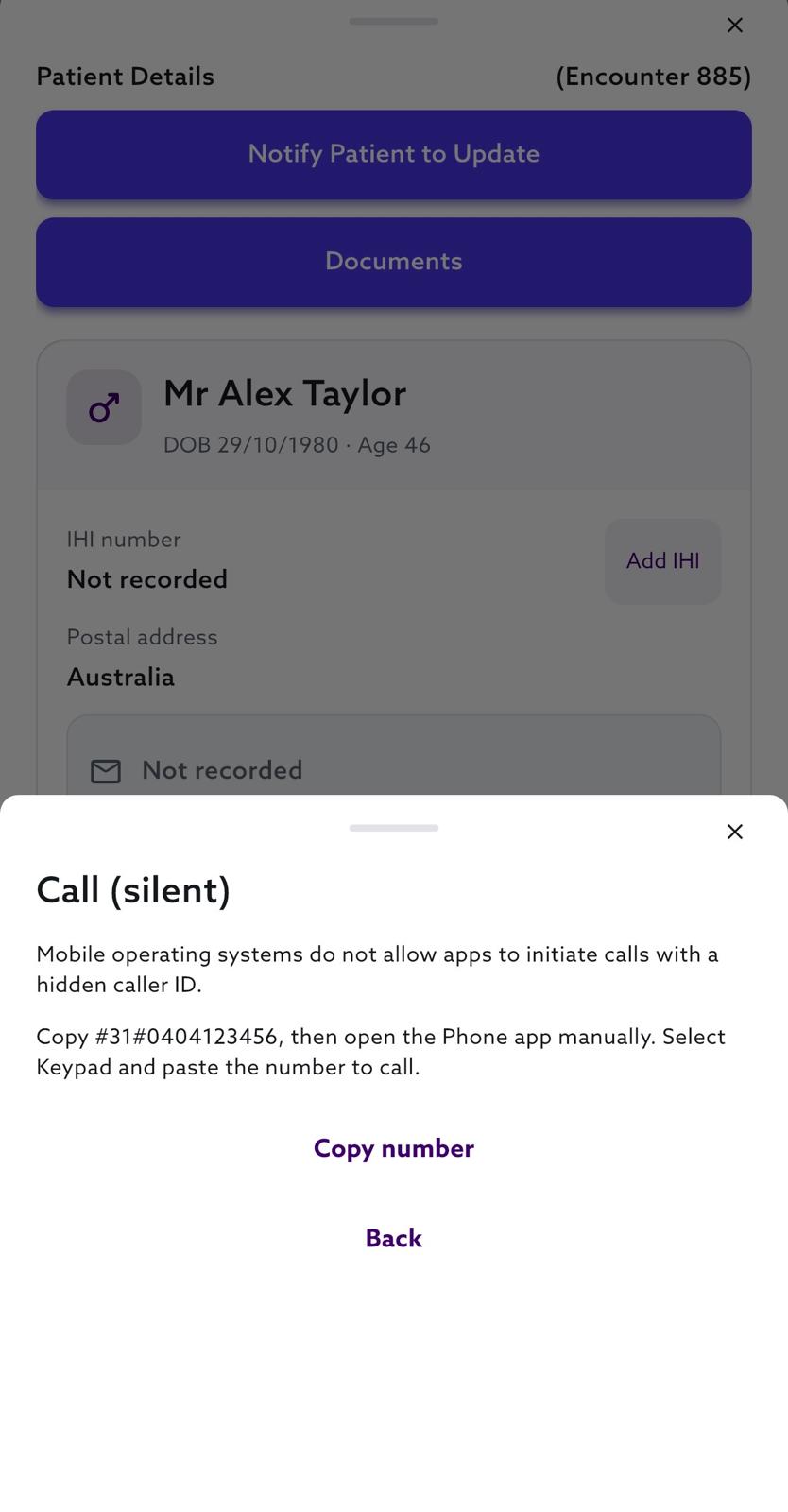
Clearer guidance for calls with a hidden caller ID
Selecting Call (silent) now shows instructions for placing the call through your phone’s dialler. Tap Copy number to copy the patient’s number with the #31# prefix, then open your Phone app, select Keypad and paste the number to call.
Encounter Management
Save multiple encounters without insurance details
When adding multiple encounters under Patient Encounters > Add Encounter > Multiple, choose Save without insurance details to save while insurance information is pending. All other required fields must be completed.
Find surgeons by preferred name
Search Surgeon fields on the dashboard using a surgeon’s preferred or registered name, making it easier to find and select the right person.
Provider Details and Item Lists
Clearer BUPA Practice ID guidance
When adding or editing a provider number in Doctors > Account Details, clearer prompts help you select the appropriate BUPA Practice ID. If none has been set up, a link takes you to Medical Data > BUPA Practice ID to add one.
Medical item lists available to doctors on the dashboard
Doctors can now view the MBS and ASA item lists under Medical Data when signed in to the web dashboard.
Calendar
Encounters visible by default in Daily Planner
Daily Planner opens with Show Encounters switched on by default, so encounters are visible without enabling the toggle each time.
Fixes & Reliability Improvements
Accurate ASA time billing after encounter edits
ASA time items and charges now remain consistent after editing, saving and reopening an encounter, using the selected AMA percentage or unit value. MBS-coded encounters are unaffected.
Correct billing when switching to Doctors Health Fund Top Cover
Switching a quoted encounter to Doctors Health Fund Top Cover resets the billing rule and changes Patient Pays Total Fee to No, preventing the previous setting from carrying over.
Additional checks on HCF membership details
Health-fund verification flags HCF membership numbers ending in a letter, even when verification returns a successful response, helping you identify invalid details before claiming.
Correct documents for third-party prepayments
Emails requesting prepayment from a third-party insurer now include a Preliminary Invoice with a payment due date, instead of an Estimate of Fees showing a consent due date.
After-hours billing across midnight
Neuraxial insertions continuing past midnight retain the appropriate after-hours items on the dashboard. ASA after-hours calculations also account for the overnight period.
More complete report exports
Payment Report exports include Patient Name after Created Date, with Paid For showing the associated EST or INV reference. Encounter Report exports include patient and health-fund payment dates beside the corresponding owing columns.
Appropriate modifiers when applying Presets
Applying a Preset to a Consult & Attendance encounter no longer adds an age modifier that cannot be claimed for that encounter type.
Correct patient claiming message in the portal
For patient-claiming encounters where the patient pays the total fee, the portal now displays No Assignment – Patient Claim instead of Implied Assignment – No Gap.
Update procedure dates after payment
You can now update the procedure date after an encounter has received payment, allowing postponed procedures to reflect the revised booking.
Appropriate provider number when changing doctors
Under Patient Encounters > Actions > Change Doctor, the suggested provider number matches the encounter’s hospital or falls back to the new doctor’s default. You can override the suggestion or select a number manually if neither is available. Bulk changes also support hospital-specific provider numbers.
Readable Preset names in dropdowns
Preset dropdowns now display complete names when adding a Preset to an encounter or fee estimate, making similar options easier to distinguish.
Group contact details on third-party quotes
Third-party quote PDFs now display the group’s contact details beneath the doctor’s information, giving insurers the relevant practice contact details.
Clearer pre-op instructions in dark mode
Improved text and background contrast makes the mobile pre-op instruction editor easier to read in dark mode.